Guides
Free Games for iPhone Without the App Store: Play in Safari, Add an Icon, Keep Your Storage
Free games for iPhone with no App Store download: play in Safari, add a home-screen icon in two taps, keep your storage. Which games run best on iOS.
 By Mahedi Hasan5 min read
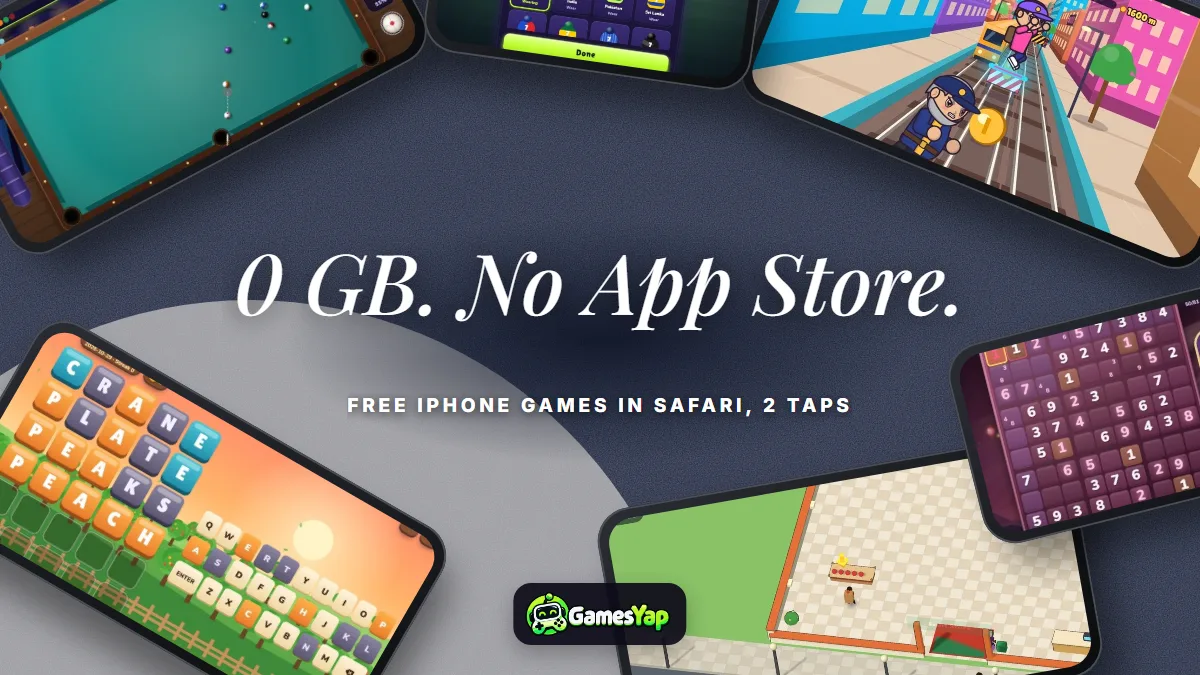
Free games for iPhone without the App Store are a real category now, not a workaround: Safari runs 3D games, saves progress, goes full-screen, and can put an icon on your home screen that opens a game like an app. Every game on GamesYap works that way. This guide covers how to set it up in two taps, which of our games play best on an iPhone (and the one thing iOS does differently), and why a 150 GB phone with no room for one more app can still have twenty games on it.
Why skip the App Store for casual games
Three honest reasons, and one honest limit.
- Storage. A typical casual game from the App Store is 150–400 MB; the big ones are over a gigabyte. A browser game loads a few megabytes into Safari's cache and keeps nothing else. Twenty games, zero gigabytes.
- No account wall, no notifications, no shop. Our games don't need a sign-in to play, don't send push notifications unless you ask, and have no in-app purchases.
- Updates are invisible. A browser game is always the latest version; nothing to update on a Tuesday night.
- The limit: no App Store means no Game Center achievements and no app-switcher card with a nice name unless you add the icon (below). For a casual game those don't matter; for a 20-hour RPG they might.
Add an icon in two taps
iOS doesn't have an "Install" button in Safari the way Android does, but the result is the same:
- Open the game page (or the GamesYap home page) in Safari. It has to be Safari; Chrome on iPhone can't add web icons.
- Tap Share (the square with the arrow), then Add to Home Screen, then Add.
The icon opens the site full-screen, without Safari's address bar, with the GamesYap logo. Do it once for the home page and every game is one tap from there; or do it per game if you want each on its own icon. The site's own Install button shows these two steps when you tap it on an iPhone.
Which games play best on iPhone
All of ours run on iOS, but some suit a phone held in one hand better than others. Our picks, tested on iPhones from the last several years:
| Game | Why it's good on iPhone |
|---|---|
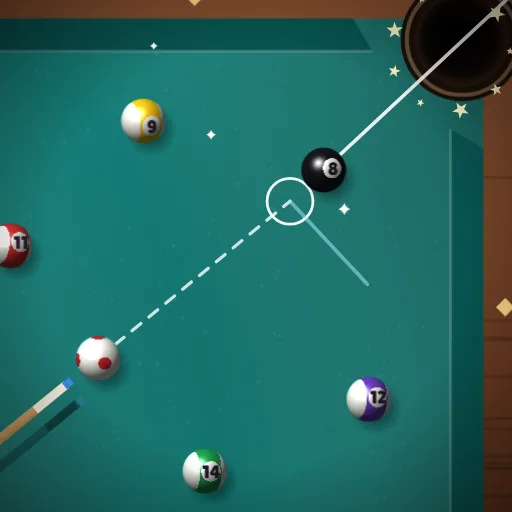
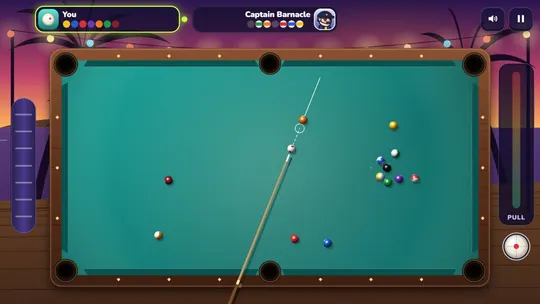
| Cue Lagoon | 8-ball pool; the table turns to fit portrait, fine-aim wheel for thumbs |
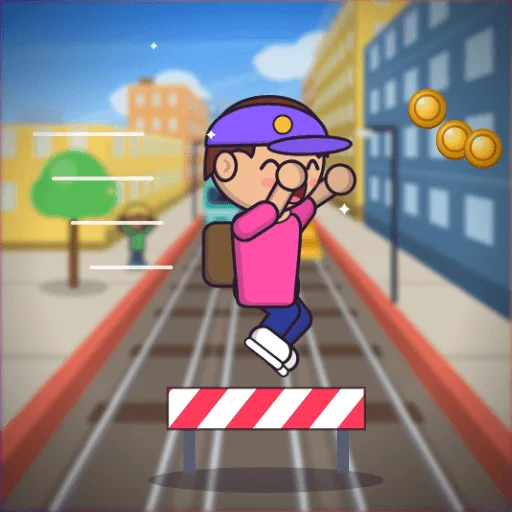
| Dash Alley | Endless runner built for one-thumb swipes, held upright |
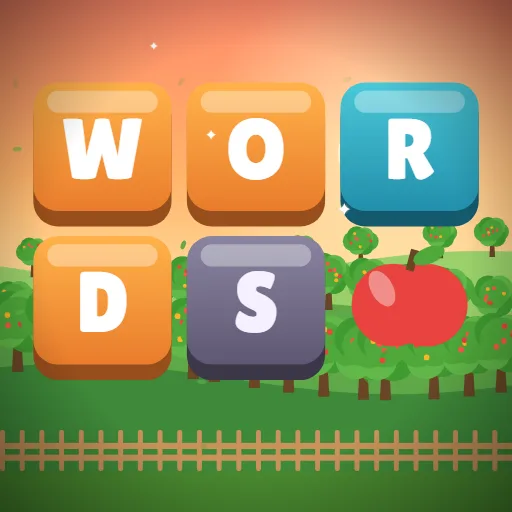
| Word Orchard | Daily five-letter word, word wheel, word search; keyboard-friendly |
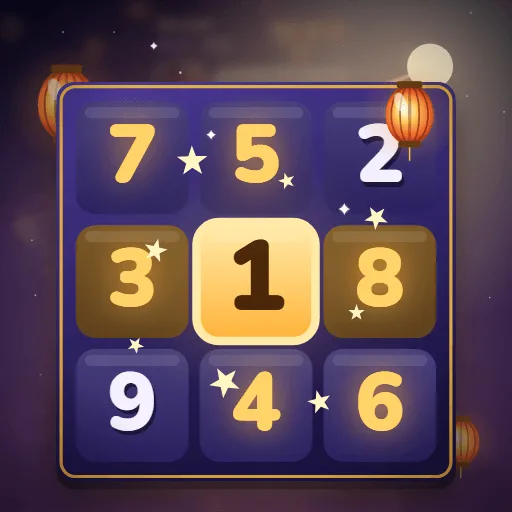
| Lantern Sudoku | Daily sudoku with notes and hints; the number pad fits a thumb |
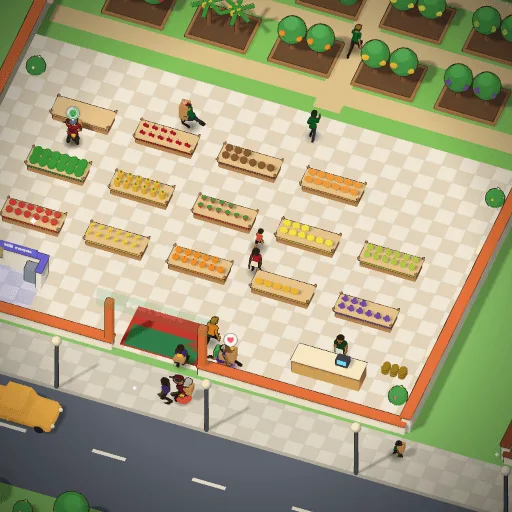
| Shop Para | A 3D idle shop you walk around with a joystick; saves where you left off |
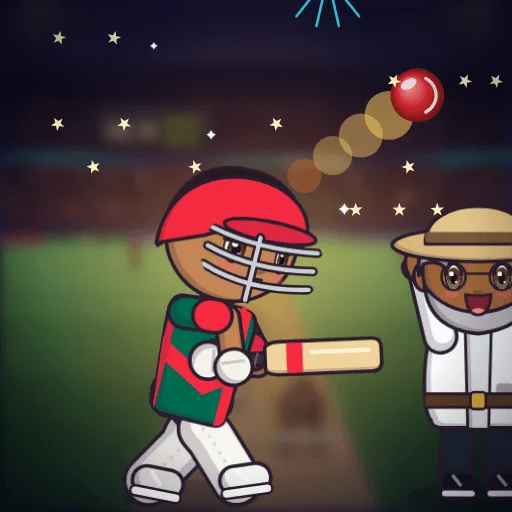
| Willow Smash | Cricket batting with live rooms for up to four friends; tap to swing |
The 3D games (Shop Para, Dash Alley, the racers) run well on any iPhone from the last five years. On an older device, the 2D games are the safe bet.
What iOS does differently (and how we handle it)
- Sound needs a tap. iOS won't play audio until you've touched the screen once; our games wait for your first tap and then play normally.
- Landscape rotation. Games that want landscape (the racers, pool) show a rotate hint; games built for portrait just fill the screen.
- Low Power Mode throttles the processor; 3D games drop frames until you turn it off.
- Saves. Progress is stored in Safari's storage and in the home-screen app's storage separately, so a game opened from the icon and the same game opened in Safari may not share progress. Pick one way to open it. Signing in to GamesYap fixes this completely: progress saves to your account and both copies read it.
- Storage clearing. If you clear Safari's website data, local progress goes too. Again, signing in is the protection.
For a child's iPhone or iPad
No App Store means no purchases to approve and no account to create. Screen Time's website limits apply to gamesyap.com like any site, and our games have no chat. The parents' guide on the site explains what points and accounts are, if you let an older child sign in.
FAQ
Can you play games on iPhone without the App Store?
Yes. Any game on GamesYap runs in Safari on iPhone and iPad with nothing to download. Open the game's page, play, and optionally add a home-screen icon through Safari's Share menu so it opens full-screen like an app. No account is required to play.
How do I add a game to my iPhone home screen without the App Store?
In Safari (not Chrome), open the game page, tap Share (the square with the arrow), choose Add to Home Screen, then Add. The icon opens the game full-screen without the address bar. You can do this for the GamesYap home page to get every game behind one icon, or for individual games.
Do browser games use storage on iPhone?
Very little. A game loads a few megabytes into Safari's cache and stores progress in a small amount of website data, compared with 150 MB to over a gigabyte for a typical App Store game. Twenty browser games take less space than one installed game.
Will my progress be saved on iPhone?
Yes, in Safari's website storage, or in the home-screen app's storage if you open the game from an icon; the two don't share, so pick one way to open it. If you sign in to GamesYap, progress also saves to your account and comes back on any device or either way of opening the game. Clearing Safari's website data removes local progress.
Why is there no sound until I tap?
iOS blocks audio until the user has touched the page once, in every browser. Our games wait for that first tap and then play music and effects normally. If sound still doesn't play, check the phone's silent switch and the game's own speaker button.
Do 3D games run on an older iPhone?
The 3D games (the racers, the idle shops, the runner) run well on iPhones from the last five years or so. On an older device, turn off Low Power Mode, close other tabs, and prefer the 2D games (pool, word games, sudoku, chess, solitaire), which run on almost anything.