
Guides
Gaming Mouse vs Regular Mouse: What Actually Changes, and Whether Browser Games Need One
Gaming mouse vs regular mouse: polling rate, sensor, weight and buttons explained, with the math on what 125 Hz vs 1000 Hz means for browser games at 60 fps.
 By Mahedi Hasan7 min read

A gaming mouse differs from a regular mouse in four ways: it reports its position more often (usually 1,000 times a second instead of 125), it has a better sensor, it's shaped and weighted for long sessions, and it adds buttons you can program. For fast shooters on a high-refresh monitor, those things help. For most browser games running at 60 frames a second, a decent regular mouse is already fast enough, and comfort matters more than specs.
If you're deciding right now, try this first. Play a mouse-heavy game you know with the mouse you have, on a proper mousepad. If the cursor never skips, stutters or drifts, you don't need to buy anything for browser games. If it does, or your hand aches after an hour, that's when a gaming mouse is worth the money.
What's actually different?
Here's the short version, without brand names or prices.
| Regular office mouse | Typical gaming mouse | |
|---|---|---|
| Polling rate | Often 125 Hz on budget models | 1,000 Hz is the usual default; some go higher |
| Sensor | Fine for desktop work | Tracks fast flicks without skipping |
| Sensitivity (DPI) | Fixed or a few steps | Adjustable, often with a button on top |
| Buttons | 2 plus the wheel, sometimes 2 side buttons | Extra side buttons you can remap |
| Shape and weight | Small, light, made for clicking | Shaped for a palm, claw or fingertip grip; weights vary |
| Cable or wireless | Often Bluetooth or a basic receiver | Braided cable or a fast 2.4 GHz receiver |
The one that gets argued about most is polling rate, so it gets its own section.
Polling rate, in plain numbers
Polling rate is how many times a second the mouse tells the computer where it is. A 125 Hz mouse reports every 8 milliseconds. A 1,000 Hz mouse reports every 1 millisecond. In the worst case, a movement waits one full interval before the computer hears about it, so a 125 Hz mouse can add up to 8 ms of delay and a 1,000 Hz mouse up to 1 ms.
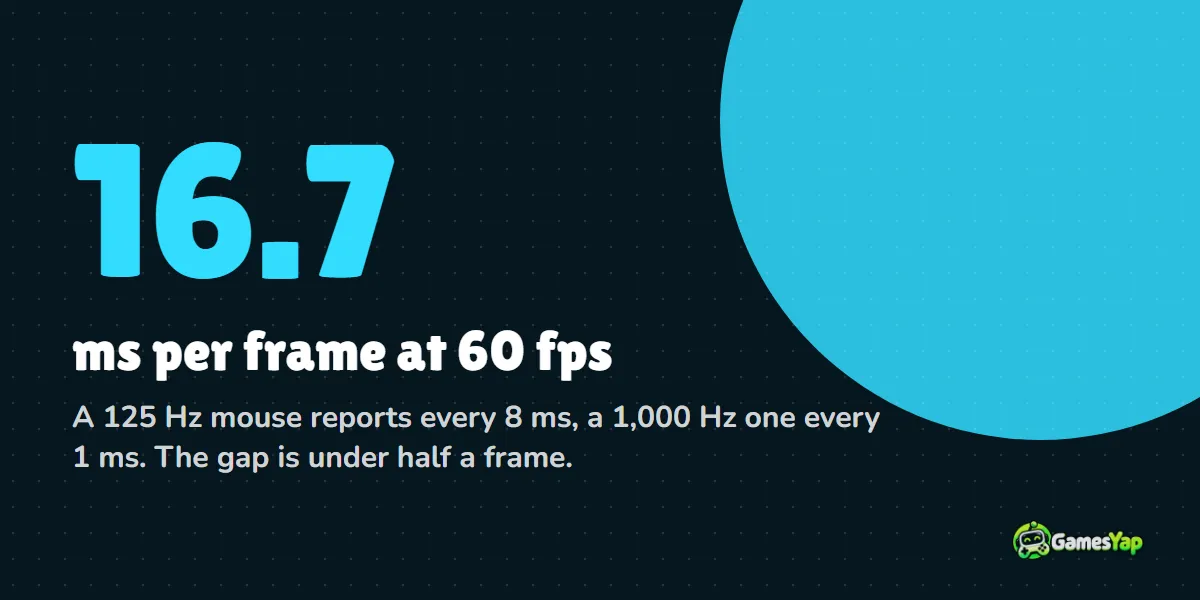
That sounds like a big difference until you compare it with how often the screen updates. At 60 frames a second, each frame lasts about 16.7 ms. We worked out how many mouse reports land inside one frame:
| Polling rate | Time between reports | Reports per frame at 60 fps | Reports per frame at 144 fps |
|---|---|---|---|
| 125 Hz | 8 ms | about 2 | about 1 |
| 500 Hz | 2 ms | about 8 | about 3.5 |
| 1,000 Hz | 1 ms | about 17 | about 7 |
| 4,000 Hz | 0.25 ms | about 67 | about 28 |
| 8,000 Hz | 0.125 ms | about 133 | about 56 |
At 60 fps, even a 125 Hz mouse gets about two reports into every frame. The step from 125 Hz to 1,000 Hz shaves off at most 7 ms, less than half a frame. On a 144 Hz monitor, where a frame is about 6.9 ms, the same 7 ms is a whole frame, which is why competitive shooter players care and casual players usually don't. Above 1,000 Hz, the gain is under a millisecond, and wireless mice pay for it in battery life, as How-To Geek and Blur Busters explain.
Why browser games are even less fussy
There's a second reason a fast polling rate matters less in a browser. Since Chrome 60, Chrome holds back mouse-move events and hands them to the page once per frame, right before the page draws, as Google's own developer blog on aligned input events explains. The extra reports aren't thrown away (a page can ask for them), but a typical game reads the pointer once a frame and moves your paddle, bow or hero to the newest spot.
So in a browser game at 60 fps, what you feel is mostly the frame rate, your monitor and your hand. That's good news if you play on a school or work laptop with whatever mouse came in the box.
When a gaming mouse really helps
There are still good reasons to buy one:
- You play fast shooters on a 120 Hz or 144 Hz monitor. Every millisecond is a bigger share of each frame, and a clean sensor stops your aim from skipping on fast flicks.
- Your current mouse skips or jitters. Cheap sensors can lose tracking on glossy desks or when you move fast. A gaming sensor on a cloth pad fixes that.
- Your hand hurts. This is the most underrated one. A mouse that fits your grip, palm, claw or fingertip, is worth more than any spec sheet. Try shapes in a store if you can.
- You want extra buttons. Side buttons for push-to-talk, a weapon swap or browser back and forward are handy in any game.
And some reasons that don't hold up: RGB lighting doesn't make you faster, very high DPI numbers on the box don't matter if you never use them, and 8,000 Hz won't fix a 60 Hz screen.
How to check your mouse before buying anything
- Use a mousepad. Most tracking problems on a bare desk go away on cloth.
- Clean the sensor. A hair or a speck of dust over the lens causes jumps.
- Plug wired mice straight into the computer. Skip hubs and front-panel ports if the cursor stutters.
- Try a 2.4 GHz receiver over Bluetooth if your wireless mouse has both. Bluetooth connections tend to report less often.
- Set your sensitivity once and leave it. Your aim improves faster when the cursor speed never changes.
Then play something where precision shows. In Stickbow Showdown you drag back with the mouse to set your bow's power and angle, and the wind gauge punishes a shaky pull. Orbit Breaker works by holding the button and dragging, and Brick Blitz moves the paddle with the mouse. If those feel smooth with your current mouse, you're set for browser games.

Wired or wireless?
Good wireless gaming mice with their own 2.4 GHz receiver are now close enough to wired that most players can't tell. The trade-offs are charging and battery life, which drop as the polling rate goes up. If you play long sessions and hate charging, a light wired mouse with a soft cable is still the simplest choice. If your desk is cramped or you move between a desk and a couch, wireless wins.
For more on making games run smoothly on modest hardware, see our guide to games for a laptop without a graphics card and the Chromebook games that run well. Want to test your reflexes once the mouse is sorted? Read what a good reaction time for gaming is.

FAQ
Is a gaming mouse worth it for casual games?
Usually not for browser and casual games at 60 frames a second. A regular mouse that tracks cleanly on a mousepad is fast enough there. Spend the money if your hand hurts, your current mouse skips, or you also play fast shooters on a high-refresh monitor, where a better sensor and a 1,000 Hz polling rate start to matter.
What polling rate do I need?
1,000 Hz is the sensible default for gaming and what most gaming mice ship with. Going from 125 Hz to 1,000 Hz cuts up to 7 ms of delay. Going higher saves less than a millisecond and drains wireless batteries faster, so it mainly makes sense for competitive players on very high-refresh monitors.
Does DPI matter for gaming?
DPI only sets how far the cursor moves for each inch your hand moves. Higher isn't better; it's just faster. Pick a setting where you can cross the screen comfortably and still land small targets, then keep it. A big number on the box means little if you'd never play at that speed.
Can I use a gaming mouse on a laptop or Chromebook?
Yes. Gaming mice work as normal mice on Windows, Mac and Chromebook without extra software. You only need the maker's app to change settings like button mapping, lighting or polling rate. Many mice save those settings on the mouse itself, so they carry over to any computer.